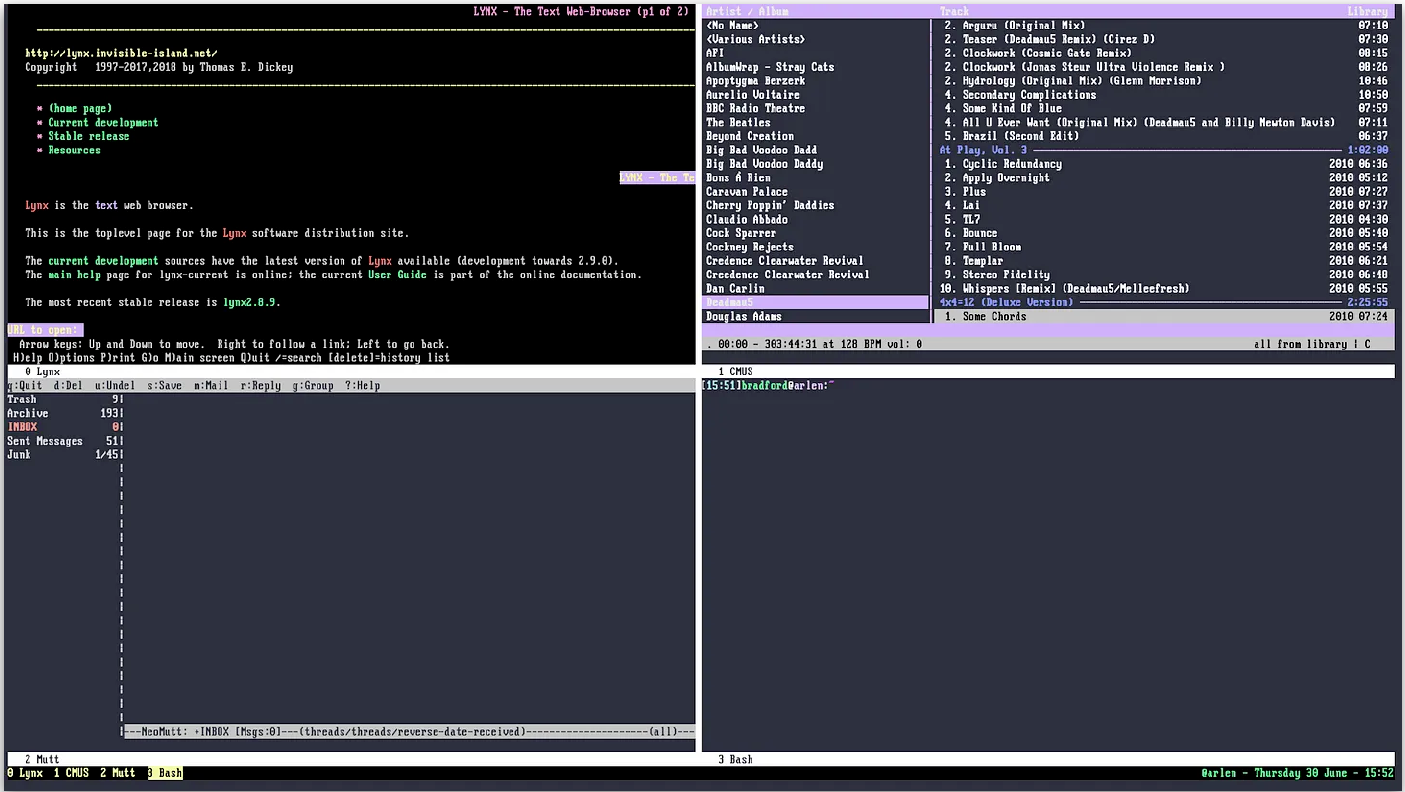
Terminal multiplexers allow you to have multiple fake TTYs on a single TTY. This is like a window manager for the UNIX/Linux shell. In my case, the shell is bash, and most of the applications I actually use are applications for the CUI (character user interface) environment.
GNU Screen is not the only terminal multiplexer out there. Other popular multiplexers are tmux, and byobu. A lot of people advocate for these other multiplexers, but I personally stick with screen. It is, at this point, something of a standard. You can apt, brew, pacman, dnf, zypper, or whatever else you do to install packages and screen is likely to be there.
To start it up just type
screen
Most actions of GNU Screen are then accessed via
Ctl + a +
So, for example, you can create a new “window” via
Ctl + a + c
Switching between windows can be done in a few di erent ways. For a menu of open windows
Ctl + a + "
Hold control and keep tapping a, and you can cycle between windows
Ctl + a + a
To switch to the next window, you use
Ctl + a + space
Ctl + a + n
Switch to previous is accomplished via
Ctl + a + p
Closing a window is done via
Ctl + a + k
My screenshot shows not just windows, but split screen. This is very easy to accomplish using more keybindings.
To split vertically
Ctl + a + |
To split horizontally
Ctl + a + S
Then, to switch focus to the next region
Ctl + a + <tab>
To kill the currently active region
Ctl + a + X
To kill all regions other than the current one
Ctl + a + Q
For me personally, these default keybindings and the default config are not entirely pleasant, so I add a few things to my ~/.screenrc
###############
# NECESSITIES #
###############
hardstatus alwayslastline
hardstatus string "%{= kY}%-w%{= Yk}%n %t%{-}%+w%{ kG} %-= @%H -%LD %d %LM - %c"
startup_message off
defscrollback 64000
##############################
# SHIFT LEFT/RIGHT TO SWITCH #
##############################
bindkey ^[[1;2D focus prev
bindkey ^[[1;2C focus next
#############################
# QUIT AND KILL ALL WINDOWS #
#############################
bind B quit
####################
# ENABLE 256 COLOR #
####################
attrcolor b ".I"
termcapinfo xterm 'Co#256:AB=\E[48;5;%dm:AF=\E[38;5;%dm'
defbce on
##################
# CLICK TO FOCUS #
##################
mousetrack on
Now, there are a few more things about GNU Screen that are just great. For one, if I am on a remote server, I always start a screen session for any real work. This allows me to hop off and then hop back on, and pickup right where I left off. To make this work, just ssh to your server, and then
screen -S 20220630
I like to title mine with the data, but that -S is just setting the name for the screen session. This makes it easier to tell what’s what when you issue
screen -list
Now, within your screen, you can do whatever, but instead of closing, just use
Ctl + a + d
This will detach you from screen. To reconnect to your most recently used session
screen -r
To connect to a specific session
screen -x 20220630
You can also start a screen detached with a specific command running in it, and this can be crazy useful.
screen -dmS FunShellTime sh
That will start a screen session with a shell in it, and you can still send more commands to it.
mkdir $HOME/tmp
screen -S FunShellTime -X stuff "sshfs otherserver:/var/www/html $HOME/tmp -d\n"
There we ran SSHFS to mount a remote directory to $HOME/tmp
This way, you can peruse the files, then attach to the session, kill it with Ctl + c, and then kill your screen session with Ctl + d. But, if you needed to, you could just keep the SSHFS connection going indefinitely.
There is more that can be done with screen, but this is meant to be just an introduction :-)
© MMIX - MMXXVI,
Bradford Morgan White
Licentiam Absurdum